


Publish on LinkedIn from your assistant
Two ways to publish on your own LinkedIn profile from your assistant. Either way, your assistant always shows you the post first and waits for your explicit yes.
Simple way: the CamMicGo app (1 minute)
On your CamMicGo account, LinkedIn section, click Connect LinkedIn, then Allow with your own LinkedIn account. That’s all: no Page and no developer app. Your posts go to your own profile.
Connect LinkedIn on my account
Advanced way: your own LinkedIn app (about 10 minutes)
For full control over the app, or if you host CamMicGo yourself. Follow the five steps below: once your keys are saved, CamMicGo uses your app instead of the shared one.
1. Have a LinkedIn Page
LinkedIn requires a Page to create a developer app; a free Page named after your project is enough. On a computer: grid icon “For Business” › “Create a Company Page” › “Company” (a Showcase page must belong to an existing Page), enter a name, tick the verification box, then “Create page”. On a phone, LinkedIn only shows this form in the desktop version: open Chrome (not the app), turn on “Desktop site” in the ⋮ menu, then type linkedin.com/company/setup/new in the address bar.
2. Create the app
On LinkedIn Developers (on a phone, in desktop mode), click Create app and fill in: App name (for example “CamMicGo – your name”), LinkedIn Page (type its name and pick it; if it doesn’t appear, paste the Page’s address), Privacy policy URL https://seo.cammicgo.com/privacy and an App logo. Accept the terms, then click Create app.
3. Add the two products
In the Settings tab, click Verify, then Generate URL, and open that link: as the Page admin you confirm it in one click. Then, in the Products tab, request “Sign In with LinkedIn using OpenID Connect” and “Share on LinkedIn” (tick the terms each time): both show “Added” right away.
4. Add the redirect URL
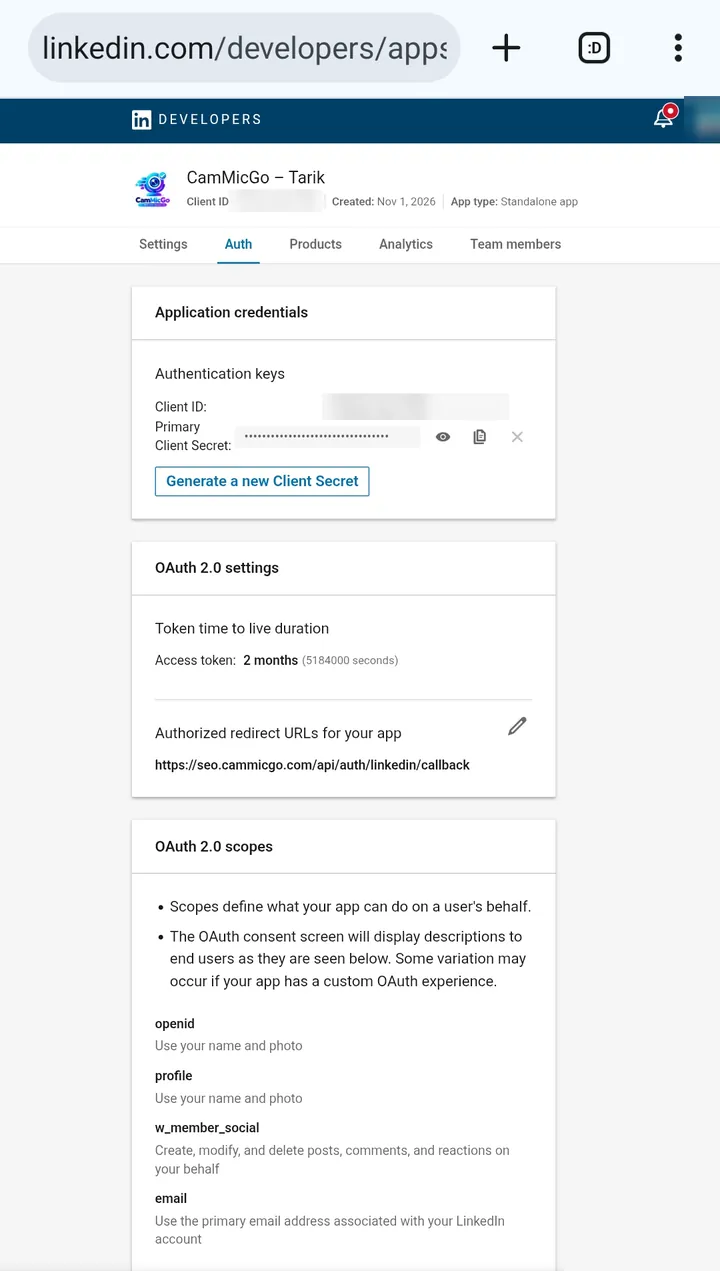
In the Auth tab, under “Authorized redirect URLs for your app”, click the pencil, then + Add redirect URL, paste exactly the address below and click Update. Further down, “OAuth 2.0 scopes” must list openid, profile, email and w_member_social.
https://seo.cammicgo.com/api/auth/linkedin/callback
5. Paste the keys in CamMicGo
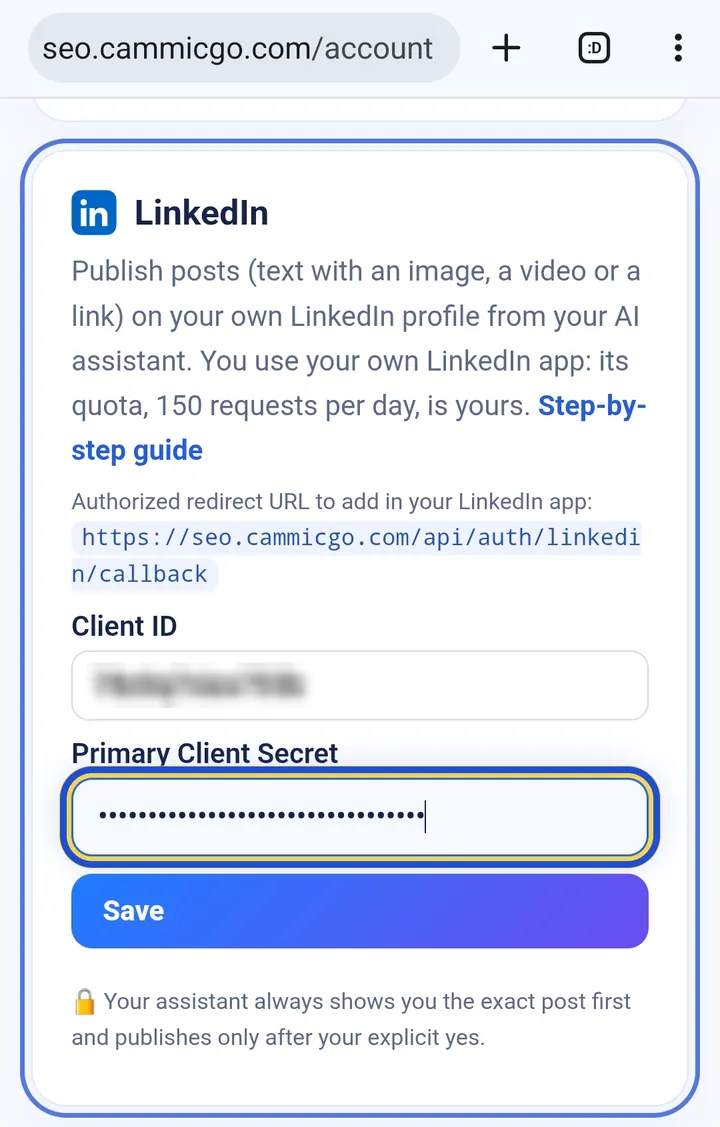
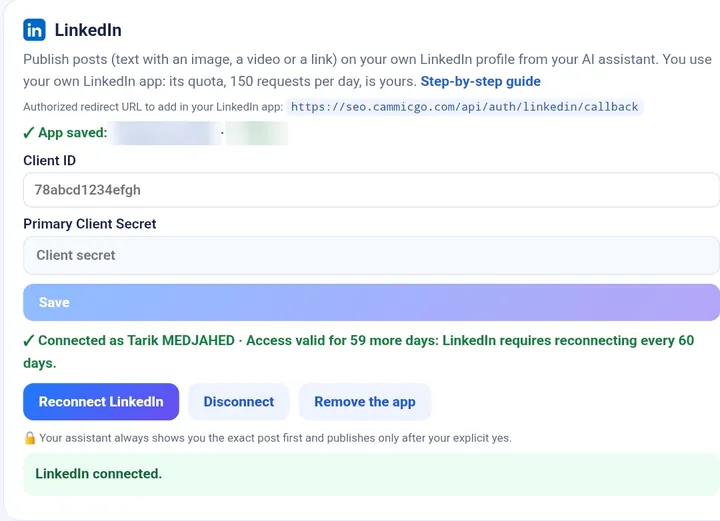
Still in the Auth tab, copy the Client ID and the Primary Client Secret (eye icon). Paste them in My account, LinkedIn section, and click Save: CamMicGo checks them with LinkedIn. Then click Connect LinkedIn, and Allow on LinkedIn: your account shows “Connected as …” with your name. Never paste the secret in a chat with an AI.
Who can post where?
Each connection only lets the person who authorized it post on their own profile. The owner of the shared app cannot post on your profile, and you cannot post on anyone else’s. CamMicGo does not ask for the right to post on company Pages. Disconnect at any time from your account, or in LinkedIn settings (linkedin.com/psettings/permitted-services).
Reuse the style of your previous posts
LinkedIn doesn’t let apps read your past posts, so give them to your assistant yourself. The simplest: paste one or more previous posts into the conversation, then ask for a new one in the same format, for example:
“Here are three posts from my series. Write this week’s post on the topic “…” in the same format, show me the preview, then publish it on LinkedIn after my yes.”
For your whole history: in LinkedIn, Settings & Privacy › Data privacy › Get a copy of your data. LinkedIn emails you an archive (usually within minutes, at most a day); its Shares.csv file holds all your posts (date, link, text). Attach it to the conversation, or put it in your Google Drive so your assistant reads it through CamMicGo.
Local MCP (on your computer)
LinkedIn publishing is part of the remote MCP: after you allow access, LinkedIn sends you back to a CamMicGo web address. If you use the local MCP, also add the remote connector https://seo.cammicgo.com/api/mcp to your assistant to publish on LinkedIn; your other tools stay local.
Good to know
- LinkedIn access lasts 60 days: then click Reconnect LinkedIn in your account.
- LinkedIn allows each member 150 requests per day, plenty for a few posts.
- Images up to 10 MB (JPEG, PNG, GIF) and videos up to 100 MB, from a public link, your Google Drive or a file sent by the assistant.